Free Audio Compressor
Shrink MP3, WAV, and other audio files down to a target size or bitrate without leaving your browser. Includes loudness normalization so quieter tracks still sound full after compression.
Click or drop an audio file (MP3, WAV, FLAC, OGG, M4A)
How this audio compressor shrinks files without leaving your browser
This tool does not simply strip metadata or trim silence. It reencodes your audio at a lower bitrate using a real build of FFmpeg compiled to WebAssembly, the same encoder used by desktop software, running inside a Web Worker in your browser tab. Nothing is uploaded. The file never leaves your machine, because there is no server call in the code at all, only a fetch to a CDN for the encoder engine itself the first time you use the tool.
The compression pipeline
Every compression job runs through the same four stages, visible directly in the tool's source.
load() call. This download is roughly 30MB and is cached by the browser for the rest of the session.
input.mp3. This happens entirely in RAM, nothing touches disk or network.
-acodec libmp3lame -b:a 128k and so on, then calls ffmpeg.exec(). Progress events stream back and drive the progress bar.
readFile(), wrapped in a Blob, and compared byte for byte against the original upload to compute the percentage saved.
The optional loudness normalization filter runs the EBU R128 loudnorm filter targeting minus 16 LUFS integrated loudness, minus 1.5 dB true peak, and 11 LU loudness range, the same defaults used by streaming platform normalization. It levels out quiet and loud passages before the bitrate reduction, which matters because a heavily compressed low bitrate file preserves perceived loudness worse than a normalized one.
Bitrate presets and what they actually do
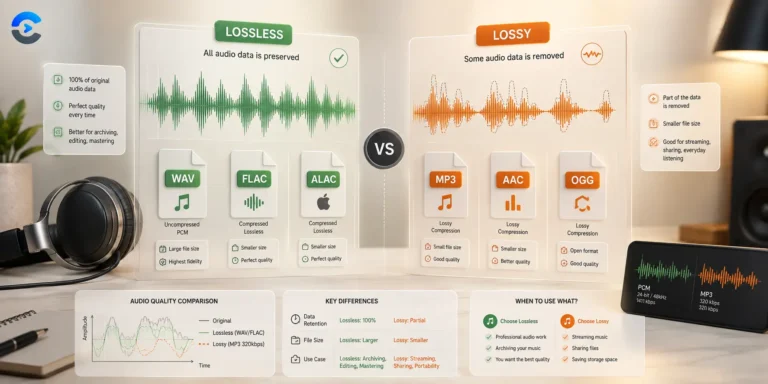
Lowering the bitrate means the encoder allocates fewer bits per second of audio, which forces it to discard more of the signal. Below is what each preset maps to in the code.
| Preset | Bitrate | Typical result |
|---|---|---|
| Small file | 64 kbps | Noticeable quality loss, best for spoken word |
| Balanced | 128 kbps | Common streaming quality, acceptable for most music |
| High quality | 192 kbps | Close to source for most listeners |
| Custom | 8 to 320 kbps | Passed through as -b:a. Very low values also lower the sample rate so the encoder accepts them |
| Target file size | Worked out for you | Target size divided by the clip length, with 3% headroom, so the file lands just under your target |
classWorkerURL fixes the origin error, but it also switches ffmpeg.wasm to a module Worker, which has no importScripts(), so the core script it loads has to be the ESM build instead of the UMD build or initialization silently fails. Both changes had to ship together.Output formats supported
The encoder targets four lossy codecs, each mapped to a real FFmpeg codec name in the source.
MP3
Encoded with libmp3lame, the LAME encoder, into an MPEG-1/2 Audio Layer III stream. The most broadly compatible option.
AAC (.m4a)
Encoded with FFmpeg's native aac encoder into an MPEG-4 audio container, generally more efficient per bit than MP3 at the same bitrate.
Ogg Vorbis
Encoded with libvorbis into an Ogg container, a royalty-free codec favored by open source projects.
Opus
Encoded with FFmpeg's own Opus encoder at 48 kHz, the modern codec defined in RFC 6716. It sounds best at 64 kbps and above.
Codec references
- FFmpeg documentation covers every flag this tool passes through, including
-b:aand theloudnormfilter. - ffmpeg.wasm is the WebAssembly port used here, compiled from the real FFmpeg C source.
- RFC 6716 defines the Opus codec used by the opus output option.
- EBU R128 is the loudness recommendation behind the normalize checkbox's minus 16 LUFS target.
- MDN WebAssembly guide explains the runtime this encoder executes in.
When smaller audio actually matters
Shrinking podcast episodes before hosting, fitting voice memos under email attachment limits, preparing narration tracks for video editors with strict upload caps, reducing music library size before syncing to a phone with limited storage, and compressing field recordings before sending them over a slow connection. Because the encoding happens locally, none of that audio, which may include unreleased material or private recordings, ever passes through a server.
FAQ: Free Audio Compressor
It depends on the original bitrate and your chosen target. Dropping from an uncompressed WAV to 128 kbps MP3 often shrinks a file by eighty to ninety percent, while dropping from 320 to 128 kbps typically saves around sixty percent. The result card shows the exact before and after size once compression finishes.
Small file encodes at 64 kbps for the smallest possible size, Balanced at 128 kbps suits most everyday listening, and High quality at 192 kbps keeps more detail for music. Choose Custom bitrate to set an exact value up to 320 kbps, or Target file size to type the size you need in MB and let the tool work out the bitrate.
Loudness normalization brings the perceived volume of your audio up to a broadcast standard level, EBU R128, so it does not sound noticeably quieter than other tracks. Turn it on for recordings that were captured at low volume or that vary a lot in loudness from section to section.
MP3 offers the widest compatibility across devices and players. OGG Vorbis generally sounds better at very low bitrates but has less universal support. AAC balances quality and file size well and is the standard format for Apple devices.
No. Compression runs through a WebAssembly build of FFmpeg loaded directly into your browser tab. Your file is processed on your own device and never transmitted anywhere.
Yes. Choose Target file size, enter the size in MB, and the tool divides it by the length of your clip to pick the bitrate. The estimate under the settings shows the expected size before you start. If the target is too small for the clip, the tool tells you the smallest size it can reach.
From the blog
Format guides and gotchas
What each format stores, and what quietly disappears in conversion.