About This Tool
A universal audio converter running the real FFmpeg engine in your browser
This tool converts between MP3, WAV, AAC, OGG Vorbis, FLAC and Opus using ffmpeg.wasm, a WebAssembly build of FFmpeg. That matters because it means the tool is not limited to a handful of formats it was specifically coded to handle. It inherits whatever container and codec support the underlying FFmpeg build ships with, so obscure input containers generally still work. Conversion happens entirely inside your browser tab. There is no upload step anywhere in the code, only a one time fetch of the encoder engine itself from a CDN.
What happens when you click Convert
Step 1 Engine boot
The FFmpeg core script and its WebAssembly binary are fetched from unpkg as blob URLs and loaded into a Web Worker, keeping the encoding off the main thread so the page stays responsive.
Step 2 File handed to the worker
Your file is loaded into FFmpeg’s virtual filesystem in memory using fetchFile(), never touching a network request.
Step 3 Codec and filter arguments built
Based on your format choice, the tool selects a matching FFmpeg audio codec and appends whichever of bitrate, sample rate, channel count, or loudness normalization you configured.
Step 4 Encode and download
FFmpeg executes the command, the result is read back from virtual storage as raw bytes, wrapped in a Blob with the correct MIME type, and offered as a direct download link.
// argument assembly, simplified from the tool source
var args = [‘-i’, inName];
if (normalize) args.push(‘-af’, ‘loudnorm=I=-16:TP=-1.5:LRA=11’);
args.push(‘-vn’, ‘-acodec’, fmt.codec);
if (fmt.lossy) args.push(‘-b:a’, bitrate);
if (sampleRate) args.push(‘-ar’, sampleRate);
if (channels === ‘mono’) args.push(‘-ac’, ‘1’);
The -vn flag tells FFmpeg to strip any video stream, relevant when converting audio pulled from a video container. Sample rate and channel count are left untouched unless you explicitly override them, which is why the output defaults to matching your source file’s characteristics.
Codec map and lossy versus lossless
| Format | FFmpeg codec | Container / type |
|---|
| MP3 | libmp3lame | Lossy, MPEG-1/2 Layer III |
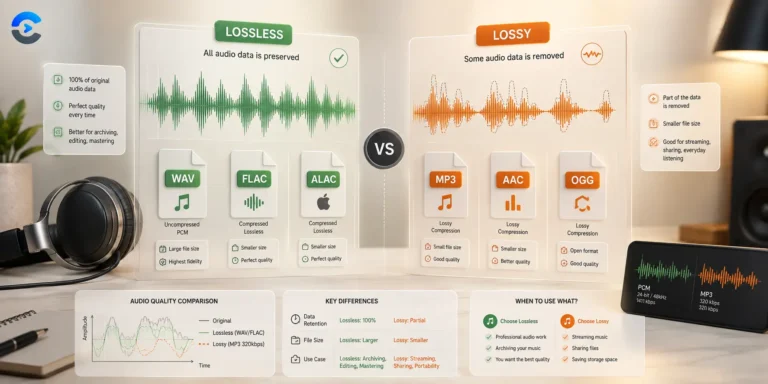
| WAV | pcm_s16le | Lossless, RIFF/WAVE PCM |
| AAC | aac | Lossy, MPEG-4 (.m4a) |
| OGG | libvorbis | Lossy, Ogg container |
| FLAC | flac | Lossless, compressed |
| Opus | libopus | Lossy, RFC 6716 |
The bitrate field only appears for the four lossy formats. WAV and FLAC skip it entirely because a lossless codec does not take a target bitrate the way a lossy one does; FLAC instead compresses losslessly around whatever the source data allows.
Cross origin worker quirk baked into the load sequence. The tool’s loader deliberately fetches the FFmpeg worker script as a same-origin blob before handing it to classWorkerURL, rather than letting ffmpeg.wasm build a Worker directly from the unpkg.com URL. A worker constructed straight from a different-origin script throws a security error in the browser. That same code path also forces the tool to load the ESM build of the FFmpeg core rather than the UMD build, since a module Worker has no importScripts() to load a classic script with.
Options exposed beyond format
Sample rate
Passed as FFmpeg’s -ar flag. Left blank, the source rate is preserved. Common choices like 44100 or 48000 Hz force a resample.
Channels
Mono forces -ac 1, downmixing stereo content. Stereo forces -ac 2. Leaving it unset keeps the source layout.
Loudness normalization
Applies the EBU R128 loudnorm filter at minus 16 LUFS before encoding, evening out volume differences across tracks.
Bitrate for lossy formats
A free text field passed straight to -b:a, defaulting to 192k if left empty.
MP3 · WAV · AAC · OGG · FLAC · Opus
Sample rate and channel overrides
Runs in a Web Worker, not the main thread
Audio format documentation
Format jobs this covers
Converting voice recordings from a phone’s default AAC container into WAV for editing in a DAW, turning FLAC rips into MP3 for a device with limited storage, preparing Opus files for web embedding where file size matters, or standardizing a folder of mixed audio formats before archiving. Because everything runs client side through a real encoder, the output quality matches what a desktop FFmpeg install would produce.