About This Tool
How this image converter uses the Canvas API and a binary search to hit a target file size
This tool loads your image into a native <img> element, draws it onto an HTML <canvas>, and reads the pixels back out through canvas.toDataURL() in whichever format you chose. That single browser API is what does the actual format conversion and quality-based compression, no external image library is involved. Everything happens on your device using a FileReader to load the file as a data URL, so the image itself is never transmitted anywhere.
The conversion sequence
Step 1 Load and decode
The file is read with FileReader.readAsDataURL(), and that data URL is assigned to a new Image object’s src, letting the browser’s own decoder handle whatever source format you uploaded.
Step 2 Compute target dimensions
Depending on the resize mode, the tool calculates output width and height: exact values, a max width or max height with the other dimension scaled proportionally, or a straight percentage scale of the original.
Step 3 Draw to canvas
A canvas is sized to the target dimensions, filled with your chosen background color first, then drawImage() paints the source image scaled to fit. The background fill matters for formats without transparency, like JPEG.
Step 4 Encode with toDataURL
The canvas is serialized with canvas.toDataURL(mimeType, qualityFraction). PNG output ignores the quality argument entirely since PNG is a lossless format with no continuous quality dial.
// size-cap binary search, from the tool source
function findQualityForCap(canvas, mime, capKB, startQ) {
var lo = 1, hi = startQ, bestQ = startQ, bestURL = ”;
while (lo <= hi) {
var mid = Math.floor((lo + hi) / 2);
var url = canvas.toDataURL(mime, mid / 100);
var kb = Math.round((url.length * 3 / 4) / 1024);
if (kb <= capKB) { bestQ = mid; bestURL = url; lo = mid + 1; }
else { hi = mid – 1; }
}
return { dataURL: bestURL, quality: bestQ };
}
That function is why the optional target size field can hit a specific kilobyte ceiling. Rather than guessing one quality value, the tool binary searches the 1 to 100 quality range, encoding the canvas at each midpoint and checking the resulting data URL length, capped at 15 attempts. If even the lowest quality setting cannot get under your target, it falls back to quality 1 and shows a warning naming the best size actually achieved, rather than silently failing.
Output formats and their real MIME types
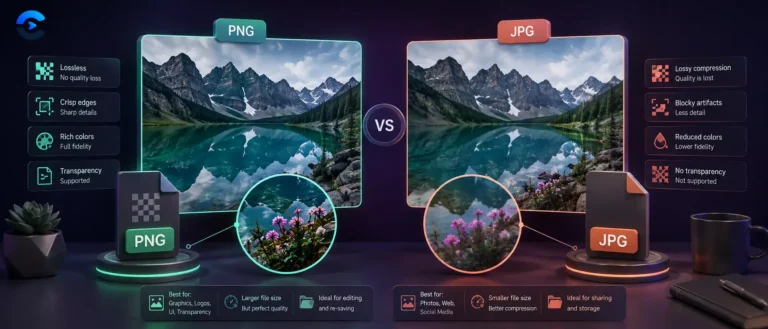
| Format | MIME type | Quality slider |
|---|
| JPEG | image/jpeg | Active, lossy compression |
| PNG | image/png | Disabled, lossless only |
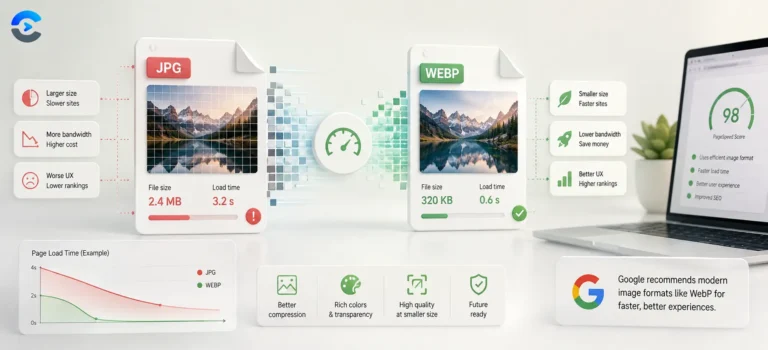
| WebP | image/webp | Active where the browser’s canvas encoder supports it |
Byte size is estimated from Base64 length, not measured directly. The tool computes output file size as dataURL.length * 3 / 4, the standard Base64-to-binary ratio, rather than converting to an actual Blob and reading .size. This estimate is accurate to within a few bytes because Base64 padding characters introduce only minor rounding, but it means the displayed size is a calculation, not a direct filesystem measurement, until you actually download the file.
Resize modes
None, max width, max height, exact width and height, or percentage scale, each computed with its own aspect ratio logic before the canvas is sized.
Background fill
A color picker sets the canvas fill before drawing, so converting a transparent PNG to JPEG produces a solid background instead of black or corrupted pixels.
Before / after comparison
Original and output dimensions, format, quality and byte size are shown side by side, with a computed percentage saved or added.
Canvas 2D drawImage + toDataURL
Binary search quality for a size cap
JPEG / PNG / WebP output
No upload, FileReader only
Image format documentation
Format decisions in practice
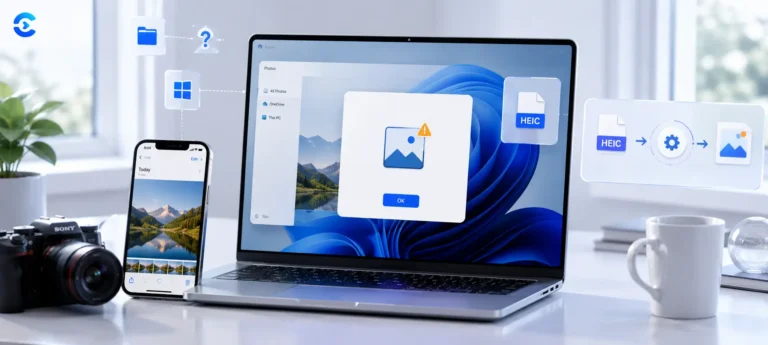
Converting a phone’s HEIC or PNG screenshots into JPEG for a website that only accepts that format, shrinking product photos under a marketplace’s kilobyte upload limit using the target size field, resizing a batch of images to a max width for a blog, or producing a WebP version of an asset to cut page weight without leaving your desktop.