About This Tool
A production OCR engine, compiled to WebAssembly, running in your tab
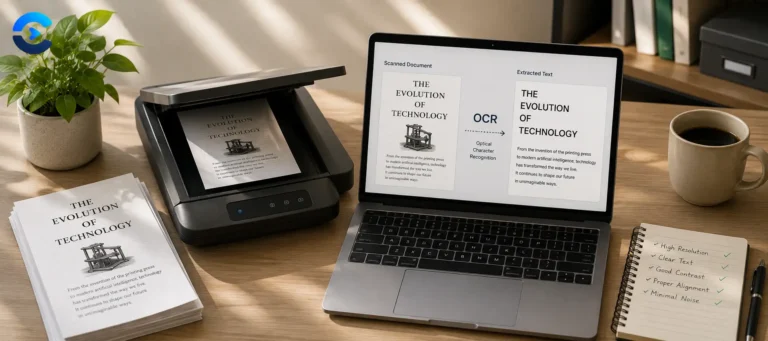
This tool is a thin interface over Tesseract.js, the JavaScript and WebAssembly port of Google's Tesseract OCR engine, the same open-source engine used in countless document scanning pipelines. The library is loaded once from a CDN script tag, and from that point on, every image you feed it is recognized locally, inside the browser's WASM sandbox. No image, and no extracted text, is sent to a server. It's a genuinely heavy piece of software to run client-side, which is exactly why the tool shows a real progress bar instead of a spinner, recognition on a full page of text can take several seconds even on a fast machine.
What happens between upload and text
Step 1 Optional preprocessing
If you enable it, the image is drawn to an offscreen canvas, converted to grayscale using the standard luma weights (0.299 red, 0.587 green, 0.114 blue), then linearly contrast-stretched so its darkest pixel becomes black and its lightest becomes white. Images under 1500 px are enlarged up to three times first, because small text is recognized more reliably when it is bigger.
Step 2 Hand off to Tesseract
The (possibly preprocessed) image blob and your selected language code, or a plus-joined list for multiple languages, are passed to a Tesseract worker that stays open between runs, which loads the matching trained language data and runs its own internal pipeline: binarization, layout analysis, line and word segmentation, then character recognition.
Step 3 Progress reporting
Tesseract.js exposes a logger callback with status strings like "recognizing text" and a 0-1 progress fraction, which the tool maps directly onto the progress bar percentage you see moving.
Step 4 Result
The engine returns plain extracted text plus a confidence score, a 0-100 estimate of how sure the model is about its own output, both are displayed and the text is made copyable and downloadable as a .txt file.
// grayscale + linear contrast stretch, from the tool's preprocessing pass
for (var i = 0; i < d.length; i += 4) {
var gray = 0.299*d[i] + 0.587*d[i+1] + 0.114*d[i+2];
d[i] = d[i+1] = d[i+2] = gray;
if (gray < min) { min = gray; }
if (gray > max) { max = gray; }
}
var range = Math.max(1, max - min);
for (var j = 0; j < d.length; j += 4) {
var v = ((d[j] - min) / range) * 255;
d[j] = d[j+1] = d[j+2] = v;
}
Stretching contrast this way is a simple normalization: whatever the actual darkest and lightest grays in the photo are, they get remapped to true black and true white, and everything in between is scaled proportionally. On a scan with a dull gray background instead of pure white, this alone can noticeably improve character edge detection before Tesseract even starts.
Language support
| Feature | Detail |
|---|
| Languages offered | 17, selectable independently as checkboxes |
| Multiple languages | Joined with + and passed as one string, e.g. eng+fra |
| Default | English if nothing is checked |
| Model download | Per-language trained data, fetched once and cached by the browser |
Multi-language mode is slower, not just broader. Selecting several languages at once doesn't just widen the character set Tesseract considers, it loads and evaluates multiple trained data files, which increases both download time on first use and recognition time on every run after. Pick only the languages actually present in your document for the fastest result.
Confidence score
A single number from Tesseract's internal per-character confidence estimates, averaged. Low scores usually mean low resolution, poor contrast, or an unusual font, not a bug in the tool.
Preprocessing toggle
On by default. It helps most with phone photos of receipts, low contrast printed pages and small screenshots, which it also enlarges. For clean, high contrast scans you can switch it off.
Text output actions
Copy to clipboard uses the standard Clipboard API; download saves the raw extracted text as a .txt file built from a Blob, no server round trip for either.
Tesseract.js, WASM, runs in-browser
No image or text sent to a server
17 languages, mixed-language support
- Tesseract.js, the pure JavaScript/WASM port of Tesseract this tool is built on.
- Tesseract OCR, the original open-source engine originally developed at HP and now maintained under Google's sponsorship.
- Tesseract trained data files, the per-language models Tesseract.js downloads on demand.
Text people pull out of images
Pulling text out of a scanned receipt for expense tracking, digitizing a printed page from a book or document you don't want to retype, extracting a quote from a screenshot, converting a photographed whiteboard into editable notes, or lifting text from a foreign language sign or menu photo using the right language pack. Because it's fully client side, it also works for sensitive documents you'd rather not upload to a cloud OCR service.