About This Tool
What the quality slider is actually doing to your pixels
Every compression here runs through one browser API: canvas.toBlob(callback, mimeType, quality). The image is drawn onto an offscreen canvas at full resolution, then re-encoded through that call with a quality value from 0 to 1. No image ever leaves your device, there's no server doing the recompression, the browser's own JPEG or WebP encoder does the work exactly as it would for any other canvas export.
Batch compression flow
Step 1 Decode
Each dropped file becomes an Image object; its natural width and height are read once so the canvas can be sized exactly to match, no scaling happens during compression by default.
Step 2 Draw
The image is drawn to a same-size canvas with drawImage(img, 0, 0), which is a plain 1:1 pixel copy, no resampling filter is applied at this stage. For JPG output the canvas is filled white first, because JPG has no transparency and empty pixels would otherwise turn black.
Step 3 Encode
The canvas is exported with toBlob() at the chosen MIME type and quality. This is where the actual size reduction happens, the browser's native encoder discards data according to the format's own compression algorithm.
Step 4 Compare
Original and new blob sizes are diffed to compute the savings percentage shown per file and across the whole batch.
// binary search for a target file size
function step() {
var mid = Math.round((lo + hi) / 2);
canvas.toBlob(function(blob) {
if (blob.size <= targetBytes) {
bestBlob = blob;
lo = mid + 1; // can afford higher quality, try again
} else {
hi = mid - 1; // too big, drop quality
}
if (lo <= hi) { step(); }
}, mime, mid / 100);
}
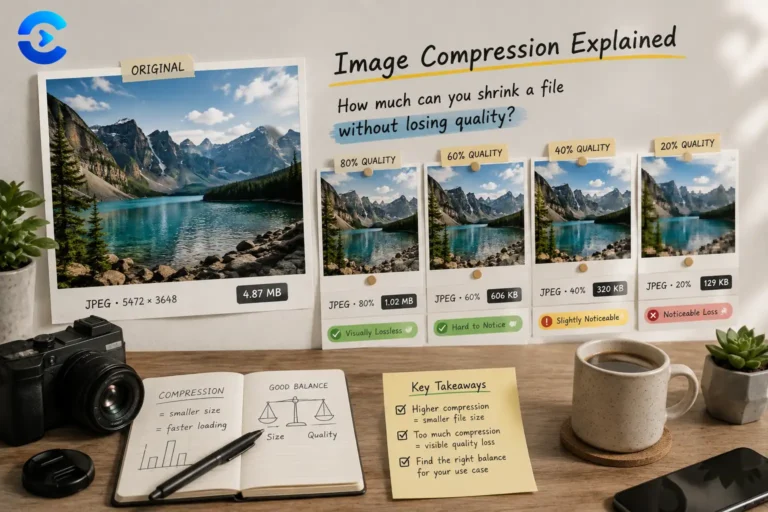
Target size mode doesn't guess a quality value once, it bisects the 5-95 quality range up to ten times, reencoding the canvas at each midpoint until it converges on the highest quality that still fits under your KB target. If even the lowest quality is too big, you get the smallest version it could make and a note telling you to resize. This is standard binary search applied to a monotonic relationship: higher quality almost always means larger file size for JPEG and WebP.
Why PNG behaves differently
| Format | Compression type | Quality parameter |
|---|
| JPEG | Lossy, DCT-based | 0-100, directly controls detail loss |
| WebP | Lossy by default | 0-100, generally smaller than JPEG at equal quality |
| PNG | Lossless, DEFLATE | Ignored by browsers, always maximum compression |
PNG quality does nothing. The Canvas API accepts a quality argument for every format, but browsers ignore it for image/png because PNG is a lossless format, there's no continuous quality dial, only how efficiently the same pixels get packed. The tool disables the quality slider automatically when PNG is selected for exactly this reason, and target-size mode is skipped for PNG since there's nothing to bisect.
Quality hints
The label under the slider, from near lossless down to visible loss, maps directly to fixed quality bands and is purely informational text, not a separate calculation.
Presets
Web (JPEG, quality 80), max compression (JPEG, 50), lossless (PNG), WebP (75), and thumbnail (JPEG, 60) are just pre-filled format and quality combinations, not distinct algorithms.
Batch summary
Total original size, total compressed size, and overall percentage saved are simple sums and a ratio across every file processed in one run.
Canvas toBlob, 100% client-side
Binary search target-size mode
JPEG, PNG, WebP
When file size decides
Shrinking a batch of product photos before uploading to an online store, hitting a strict attachment size limit for an email, preparing images for a page speed audit where every kilobyte counts toward load time, converting a folder of PNG screenshots to WebP for a blog post, or getting a camera photo under a forum's upload cap using the target size mode instead of guessing at a quality percentage.