Free PDF to EPUB & EPUB to PDF Converter
Convert an EPUB ebook to a readable PDF, or pull the text out of a PDF into a proper reflowable EPUB. Both directions run entirely in your browser, converting real text, not screenshots of pages.
Chapters are detected from the EPUB’s spine order, each one starts on a new page. Text is laid out as real, selectable PDF text, images inside chapters are not included.
Extracts the PDF’s real text and rebuilds it as a reflowable EPUB. Layout, columns and images are not preserved, this pulls the words out, not a picture of the page.
Choose how the PDF should be broken into chapters.
Converts the actual words, not a picture of the page
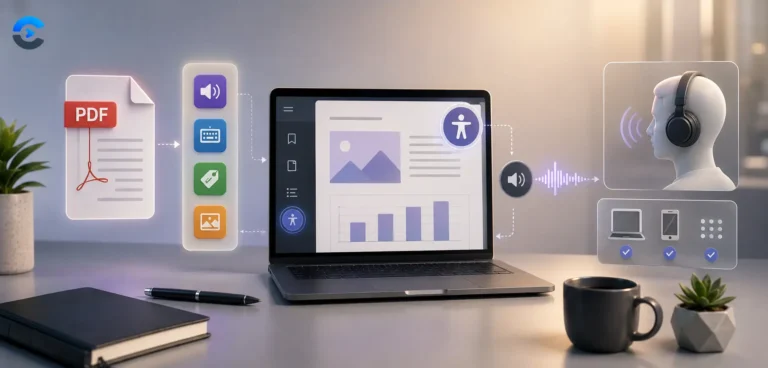
Both directions of this tool work with real text. EPUB to PDF parses your ebook’s XHTML chapters and lays the words out as genuine, selectable PDF text using jsPDF. PDF to EPUB reads the actual character positions out of your PDF with pdf.js, Mozilla’s PDF engine, and rebuilds them into a proper reflowable ebook. Neither direction works by taking a screenshot of a rendered page, which is how many quick online converters handle this and why their output often can’t be searched, resized, or read aloud by an ebook reader’s built-in accessibility tools.
EPUB to PDF: how a chapter becomes a page
PDF to EPUB: reconstructing paragraphs from character positions
A PDF has no concept of a “paragraph”, it just knows where individual pieces of text sit on the page. pdf.js’s getTextContent() returns every text run with its exact x/y position. This tool groups runs into lines by matching y-coordinates, then groups lines into paragraphs by looking for a vertical gap noticeably larger than the normal line spacing, the same visual cue a human eye uses to spot where one paragraph ends and the next begins. It’s a heuristic, not a perfect structural reconstruction, so unusual layouts (multi-column pages, tables, captions) can occasionally merge or split oddly.
A quick text check before anything else
The moment a PDF is selected, this tool reads every page and counts how much real, extractable text it actually contains before offering any chapter options. A normal document averages well over a hundred characters per page. If a PDF comes back with almost nothing, that’s usually a sign it’s a scanned book, a stack of photographed pages, or a print-to-PDF of images rather than typed text. This tool flags that case with a warning instead of silently producing a mostly blank EPUB, because no amount of layout logic can pull words out of a PDF that never had selectable text to begin with. Scanned documents need OCR software first, which is a separate step this tool doesn’t attempt.
Four ways to split a PDF into chapters
Once the text check passes, the tool analyzes the document’s structure and offers a live preview of the resulting chapters before you convert anything, so you can see exactly what you’re going to get and adjust it first.
Whichever method is chosen, the resulting chapter list appears as an editable preview: each detected chapter shows its title, its page range in the source PDF, and a merge button to fold it into the neighboring chapter if the automatic detection split something too finely. Chapter titles are plain text fields, so a heading picked up as “CHAPTER ONE” can be retyped as something more readable before the EPUB is generated. Switching methods or pressing reset discards those edits and rebuilds the preview from scratch, so it’s safe to try a different method without starting the whole upload over.
Why the output EPUB is a valid, real ebook file
The generated file follows the EPUB 3 specification: a stored (uncompressed) mimetype entry first in the ZIP as the spec requires, a container.xml pointing to the package document, a navigation document and an NCX table of contents for compatibility with older EPUB 2 readers, and one XHTML file per chapter. It opens correctly in Apple Books, Calibre, and any standards-compliant e-reader app.
Where the work happens
Library and references
- pdf.js extracts positioned text runs from the source PDF.
- jsPDF lays out and generates the PDF output.
- JSZip reads and writes the EPUB container format.
- EPUB 3 specification defines the file structure this tool produces.
Where this gets used
Turning a text-heavy PDF report into something readable on an e-reader’s smaller screen with adjustable font size, or converting an EPUB novel to PDF for printing a proof copy.
FAQ: Free PDF to EPUB & EPUB to PDF Converter
No, this tool converts text content only. Embedded images, complex layouts and tables are not carried over in either direction.
Real, selectable text. It’s laid out with actual PDF text-drawing commands, not a screenshot, so it can be searched, copied, and read by screen readers.
Paragraph boundaries are inferred from vertical spacing between lines of text, since PDFs don’t store paragraph structure directly. Unusual layouts like multi-column pages or tables can confuse this heuristic.
Yes, it’s a standards-compliant EPUB 3 file with an EPUB 2 NCX fallback, so it opens correctly in Apple Books, Calibre and other standard e-reader apps.
No, both directions run entirely in your browser using pdf.js, jsPDF and JSZip. Nothing is sent to a server.
From the blog
Format guides and gotchas
What each format stores, and what quietly disappears in conversion.