
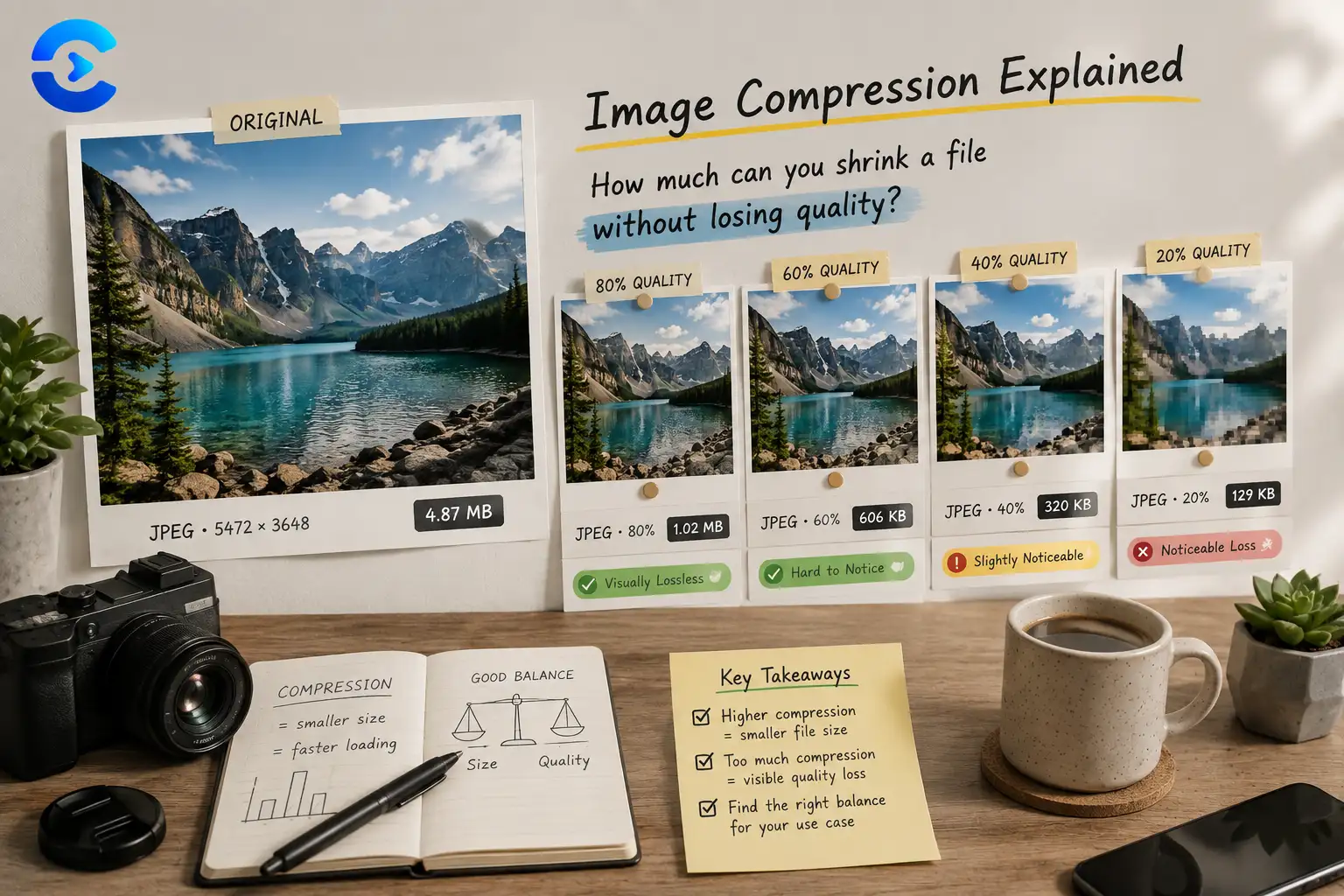

How Much Can You Compress an Image?
Most photographs can be compressed to roughly 10 to 20 percent of their original file size before visible quality loss appears, though the exact point depends on the image content and compression format. In our test, a 2.4 megabyte photo held up cleanly down to about 380kb, with noticeable blockiness only appearing once the file dropped below 150kb. Busy, detailed photos tolerate more compression than smooth gradients like skies, which show artifacts much sooner.
Most photographs can be compressed to roughly 10 to 20 percent of their original file size before visible quality loss appears, though the exact point depends on the image content and compression format.
Testing one photo across six quality levels
To find out how much you can compress an image before it starts looking wrong, we took a single 2.4 megabyte landscape photo straight from a phone camera and ran it through compression at six different quality settings, from a light touch down to an aggressive squeeze. At each step we measured the resulting file size and looked closely at areas of the image most likely to reveal artifacts: skies, skin tones, and fine texture like foliage or fabric.
The pattern that emerged was consistent with what most compression research already shows. The first 60 to 70 percent of size reduction is essentially free, meaning the human eye cannot reliably tell the compressed version from the original at normal viewing distance. Past that point, quality drops off quickly, and the last 10 percent of extra size savings costs a disproportionate amount of visible sharpness.
Where the artifacts actually start showing up
Blockiness first appears in smooth gradient areas, particularly skies and out of focus backgrounds, because compression algorithms group pixels into blocks and smooth areas make the block boundaries obvious once compression gets aggressive. Detailed, high texture areas like grass, gravel, or patterned fabric can absorb far more compression before a viewer notices, since the existing visual noise in the image hides the algorithm's own noise.
How much can you compress an image before it looks bad on screen versus in print
Screen viewing is far more forgiving than print. An image compressed to the point of mild blockiness on a large monitor at full zoom might look completely fine on a phone screen or as a small thumbnail, since the artifacts occupy fewer physical pixels at smaller display sizes. If your image is destined for print, keep compression conservative, but if it is going on a web page as a thumbnail or card image, you can usually push compression noticeably further than feels comfortable at first.
Find your own breaking point in seconds
The Image Compressor lets you test multiple quality levels on your own photo directly in your browser, showing the resulting file size instantly so you can find the exact setting where your image stays sharp without carrying unnecessary weight.
Open the Image CompressorResize before you compress for the best result
Oversized images compress worse than correctly sized ones, since the compressor is fighting pixels you never needed in the first place. Running an image through the Image Resizer first, then compressing it, typically produces a smaller final file at higher visible quality than compressing the oversized original alone.
Open the Image ResizerFile size versus visible quality at each level
| Quality setting | File size | Visible result |
|---|---|---|
| Original | 2.4 MB | Full detail, no artifacts |
| 90 percent quality | 780 kb | No visible difference |
| 75 percent quality | 380 kb | No visible difference |
| 60 percent quality | 210 kb | Very slight softness in skies |
| 45 percent quality | 150 kb | Mild blockiness visible on close inspection |
| 25 percent quality | 95 kb | Clearly visible artifacts and color banding |
Format also changes how much compression you can get away with
The test above used a standard photographic format, but the answer to how much can you compress an image shifts depending on which format you start from. Formats built for photographs handle gradual color transitions efficiently and tolerate aggressive compression before showing blocking. Formats built for flat graphics, logos, and screenshots behave differently, since they were designed to preserve sharp edges and exact colors rather than photographic detail, and compressing them the same way often introduces color banding much sooner than it would in a photograph.
This is part of why choosing the right format before compressing matters as much as the compression setting itself. A screenshot saved and compressed as a photographic format will often look worse and end up larger than the same screenshot saved in a format meant for flat color graphics, even at similar compression settings. Matching the format to the content type is a free win that costs nothing beyond picking the correct export option.
A short checklist for choosing a compression level
- For hero banners and large images, stay above 75 percent quality to protect fine detail.
- For thumbnails, card images, and small previews, 45 to 60 percent quality is usually indistinguishable.
- Always compress a copy, never overwrite your original source file.
- Check compressed images at their actual display size, not zoomed in, since that is how visitors will see them.
Other image tools that help
If your compressed image needs to change format, for example moving a PNG screenshot to a JPEG for smaller delivery, the Image Converter handles that conversion cleanly before you compress it further. Once you have found a compression level you trust, browse the rest of the image and design tools for related editing utilities, and check the ConvertNow blog for more testing based breakdowns like this one.
How far you can push it
You can typically shrink a photo to a fifth or even a tenth of its original size before quality loss becomes noticeable, but the exact threshold depends heavily on the image itself, so testing beats guessing every time. Try the Image Compressor on your own photo and compare a few settings side by side before publishing.
How Much Can You Compress an Image? Page Weight, Resizing and Repeat Saves
The main post tested one photo across six quality levels. This section asks a different question: what does the answer mean for a whole page? Knowing how much can you compress an image is useful, but page weight is what visitors feel.
How much can you compress an image before a gallery page feels slow?
Take a gallery of 10 phone photos at 2.4 MB each. That page carries 24 MB of images. On a 10 megabit connection that is about 19 seconds of pure download time. Compress each to 380 kb, the level the main test judged clean, and the page carries 3.8 MB, which downloads in about 3 seconds. Same photos, same look at normal size, and 84 percent less data, which shows how much can you compress an image set in practice. This is the practical side of the topic.
| Page setup | Image data | Download at 10 Mbps |
|---|---|---|
| 10 originals, before asking how much can you compress an image | 24 MB | 19.2 seconds |
| 10 files, how much can you compress an image to 380 kb each | 3.8 MB | 3.0 seconds |
| 10 files at 150 kb, how much can you compress an image with resizing | 1.5 MB | 1.2 seconds |
The download times use size in megabytes times 8, divided by the line speed, and ignore server delay. Real pages load images in parallel, so treat the figures as a comparison.
Why resizing beats quality cuts when you ask how much can you compress an image
A 4000 by 3000 photo shown in a 1600 by 1200 box wastes 84 percent of its pixels. Resizing removes them with no visible cost, so how much can you compress an image starts with size. Lowering quality, by contrast, always trades detail for bytes, a limit on how much can you compress an image safely. So resize first. How much can you compress an image after that depends on quality alone. After resizing you can keep quality at 75 percent and still land far below the first number. For the question of how much can you compress an image, pixel count is the biggest lever, and quality is the fine adjustment.
- Find the widest size the image is ever displayed at, then export at that width.
- For sharp screens, allow up to twice that width, but no more.
- When testing how much can you compress an image, compress last, from the original file, using a single pass.
- Check the three slowest pages with the biggest images before you work on small ones.
- Record the starting size so you can see how much can you compress an image library overall.
A simple workflow for how much can you compress an image on a real site
Start with the heaviest page. Export each image at display width, compress at 75 percent, and look at it at actual size. If it passes, try 60 percent and look again. Stop at the last setting where you cannot see a change. That setting is your personal answer to how much can you compress an image like this one. Write it down and reuse it for similar photos.
Do repeated saves change how much can you compress an image?
Yes, and in the wrong direction for how much can you compress an image. Every lossy save throws away a little more detail, and the damage stacks. A photo saved at 75 percent three times looks worse than one saved once at 60 percent. The fix is simple: keep one master file and always export from it, whatever your answer to how much can you compress an image. Never compress a file you already compressed, because how much can you compress an image only applies to a fresh original. If you only have the compressed copy, start from a higher quality than you think you need.
Format tip for how much can you compress an image
Google reports that WebP files are often 25 to 34 percent smaller than JPEG at similar quality. Test your own photos, because how much can you compress an image changes with content.
Short answers on how much can you compress an image
What is a sensible target for web photos? For how much can you compress an image on the web, aim for a few hundred kb for large images and under 100 kb for small cards. Then check them visually.
Can I undo how much can you compress an image choices later? No. Lossy compression removes data for good. Keep originals.
Where can I test how much can you compress an image? Use the image resizer for the size step, then test your own limit in the browser.
| # | Key takeaway |
|---|---|
| 1 | For hero banners and large images, stay above 75 percent quality to protect fine detail. |
| 2 | For thumbnails, card images, and small previews, 45 to 60 percent quality is usually indistinguishable. |
| 3 | Always compress a copy, never overwrite your original source file. |
| 4 | Check compressed images at their actual display size, not zoomed in, since that is how visitors will see them. |
FAQ: How Much Can You Compress an Image?
How much can you compress an image before quality suffers?
Most photographs can be compressed to roughly 10 to 20 percent of their original file size before visible quality loss appears, though smooth gradient areas like skies show artifacts sooner than detailed, textured areas.
Why do skies show compression artifacts before other parts of a photo?
Compression algorithms group pixels into blocks, and smooth gradient areas make those block boundaries obvious once compression becomes aggressive, while detailed textures hide the same artifacts within existing visual noise.
Is lossy compression bad for a website?
Lossy compression is generally fine for websites since screens display far fewer effective pixels than print, and most visitors view images at a size and distance where moderate compression is invisible to the eye.
Should I resize an image before or after compressing it?
Resize first, then compress, since compressing an oversized image wastes effort on pixels that will be discarded anyway and produces a larger final file than resizing followed by compression.
What file size should a web image target?
Hero images typically target under 200kb, and thumbnails or card images typically target well under 100kb, though the right number depends on the page's overall performance budget.
Does image content affect how much compression it can handle?
Yes, busy and detailed images like foliage or textured fabric tolerate significantly more compression than smooth images like skies or studio backgrounds before artifacts become visible.
Can compressed images be restored to their original quality?
No, lossy compression permanently discards image data, so a compressed file can never be restored to its original quality, which is why keeping an uncompressed source file is important.
Sources and further reading
- web.dev: Choose the correct level of compression: quality settings explained by Google.
- MDN: Lossy compression: what gets thrown away and why.