
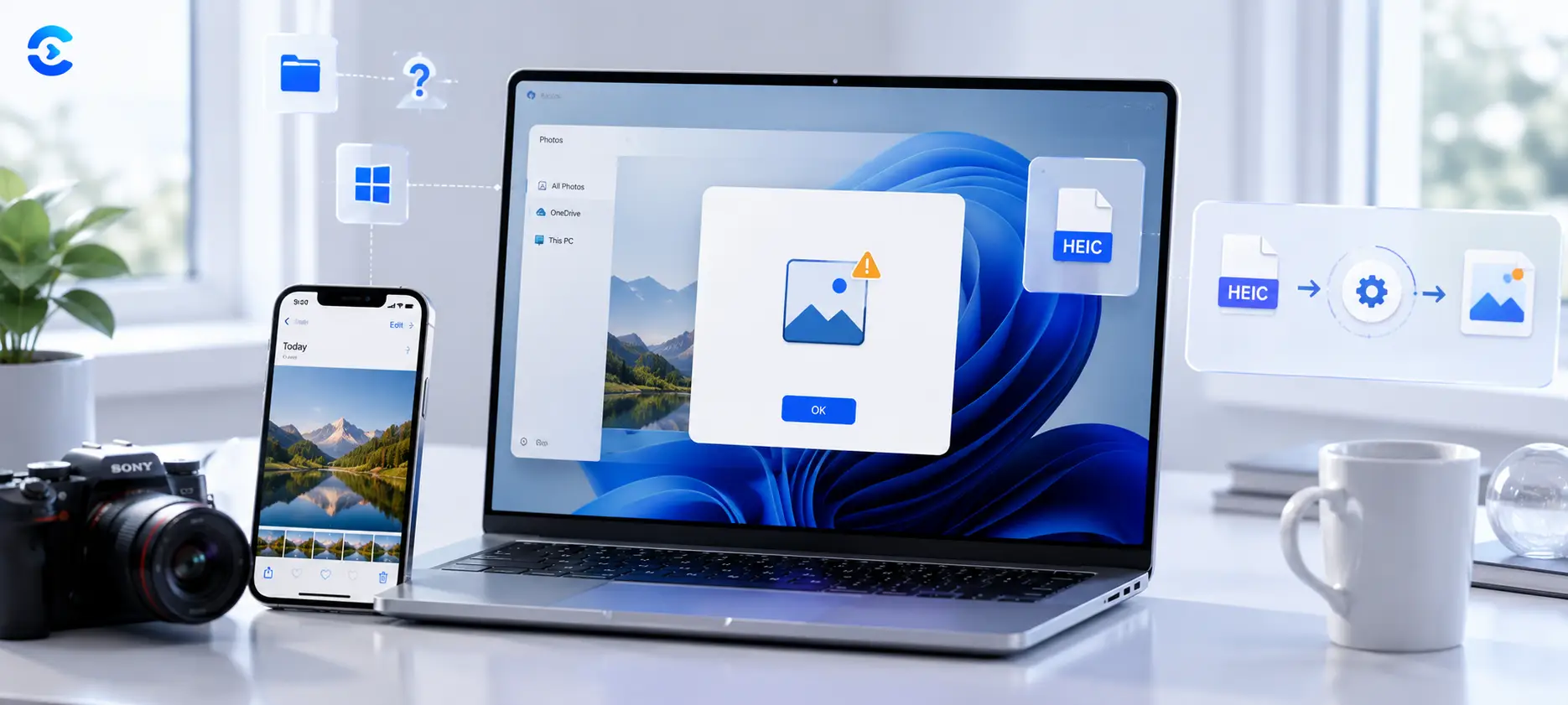

Why Wont HEIC Photos Open on Windows? Here’s the Fix
HEIC photos wont open on Windows or many Android phones because HEIC is a newer Apple compression format that those systems do not read natively, unlike the older JPG format almost everything supports. The fix is simple: either switch your iPhone camera to shoot in the Most Compatible JPG format going forward, or convert the HEIC files you already have into JPG using a free online converter. Both take a couple of minutes and solve the problem for good.
What HEIC actually is, and why your iPhone uses it
HEIC stands for High Efficiency Image Container. Apple made it the default photo format starting with iOS 11 because it compresses images far better than JPG. A HEIC file can hold roughly the same visual quality as a JPG while taking up about half the storage space. For a phone camera shooting thousands of photos, that space savings matters, so Apple quietly switched the default and most iPhone owners never noticed until they tried to share a photo somewhere else.
Why wont HEIC photos open on Windows and Android
The problem is not that your photos are broken. It is that HEIC support is not universal the way JPG support is. JPG has been the standard image format since the 1990s, and virtually every operating system, browser, app, and device on earth can open one without any extra software. HEIC is newer and its licensing terms are more restrictive, so many platforms outside Apple’s ecosystem never bothered adding full support. Windows only added limited HEIC viewing after installing an extra codec pack, older Android phones often cannot open HEIC at all, and plenty of websites, forms, and older apps will simply reject the file or show a broken image icon.
This is why a photo that opens fine on your iPhone can suddenly fail to load the moment you email it to a coworker, upload it to a website, or plug your phone into a Windows PC. The file itself is fine. The software on the other end just was not built to read it.
| Format | File size | Windows support | Android support | Web upload support |
|---|---|---|---|---|
| HEIC | Smaller | Limited, often needs a codec | Inconsistent by device and version | Frequently rejected |
| JPG | Larger | Full, native | Full, native | Universally accepted |
Two ways to fix HEIC compatibility problems
You have two options, and they solve different parts of the problem. One prevents future photos from causing trouble. The other fixes the photos you already have sitting on your phone right now. Most people end up doing both.
Prevention: set your iPhone to shoot in Most Compatible format
Apple actually built a setting for this exact issue. Switching it takes about thirty seconds and every photo you take afterward will save as a standard JPG instead of HEIC.
- Open the Settings app on your iPhone.
- Scroll down and tap Camera.
- Tap Formats.
- Under Camera Capture, select Most Compatible instead of High Efficiency.
That is the whole process. Your camera will use a bit more storage per photo, but every image will open anywhere without a second thought, no conversion needed later.
Cure: convert your existing HEIC photos to JPG
The setting above only affects new photos. For pictures you already took, you need to convert the HEIC files themselves. The fastest way is a browser based converter that takes your HEIC files and outputs standard JPG images in seconds, with no software to install and no file size limits to worry about for typical photo batches. You can also resize or compress the resulting JPGs afterward if you are trying to keep file sizes small for email or a website.
If you are also trying to shrink file sizes further, an image compressor can shrink the converted JPGs without a noticeable quality loss, and an image resizer is handy if you need specific pixel dimensions for a form, website, or print job. For other document and file format headaches beyond photos, the file and document tools hub covers most everyday conversion needs in one place.
Convert HEIC to JPG in seconds
Skip the settings menus and codec downloads. Drop your HEIC photos into the Image Converter, pick JPG as the output, and download files that open anywhere, on any device, in any app.
Open the Image ConverterThe short answer
HEIC photos wont open on Windows or many Android phones because those systems were not built around Apple’s newer, more efficient format the way they were around JPG. You can prevent the issue going forward by switching your iPhone camera to Most Compatible mode, and you can fix photos you already have by converting them to JPG with the Image Converter. Either way, your photos will open everywhere without any guesswork.
FAQ:
Why wont HEIC photos open on Windows?
Windows does not natively read HEIC files the way it reads JPG without an extra codec installed, and even then support can be inconsistent across apps. Converting the file to JPG removes the problem entirely since JPG is supported everywhere by default.
Why do my iPhone photos not open on Android?
Most iPhones save photos in HEIC format by default since iOS 11, and many Android devices, especially older ones, do not support that format. Converting the photos to JPG before sharing them solves the issue on virtually any Android phone.
Is HEIC better quality than JPG?
HEIC can produce similar visual quality to JPG at roughly half the file size, which is why Apple adopted it. The tradeoff is compatibility, since JPG is supported everywhere while HEIC is not.
How do I stop my iPhone from taking HEIC photos?
Go to Settings, then Camera, then Formats, and select Most Compatible instead of High Efficiency. New photos will save as JPG automatically from that point forward.
How do I convert HEIC photos to JPG for free?
Use a browser based converter like the ConvertNow Image Converter. Upload your HEIC files, choose JPG as the output format, and download the converted photos in seconds without installing anything.
Will converting HEIC to JPG reduce photo quality?
There is a small amount of quality loss when converting between compressed formats, but at typical settings it is not noticeable to the eye. The tradeoff is worth it for a photo that actually opens on every device.
Does changing the iPhone camera setting affect old photos?
No. The Most Compatible setting only changes how future photos are saved. Photos you already took will remain in HEIC format until you convert them separately.
Can I convert multiple HEIC files to JPG at once?
Yes, most online converters, including the ConvertNow Image Converter, support uploading and converting several HEIC files in one batch rather than one at a time.